
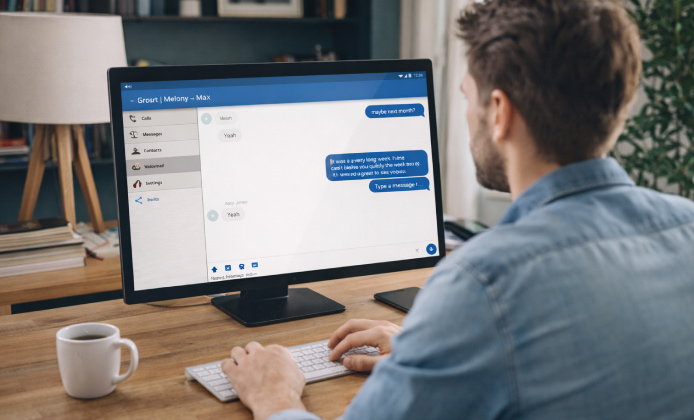
Talkatone is popular for Wi-Fi calling and messaging, especially for people who want a flexible number for everyday communication. While it’s designed primarily for mobile devices, you can still use it on a desktop or laptop with a few reliable approaches. This guide walks you through realistic options, setup tips, and common troubleshooting steps so you can get stable audio and consistent notifications.
Many people start by trying to use Talkatone on PC because a full keyboard and headset feel more natural for long calls.
What You Can Expect When Running a Mobile Calling App on a Computer
Before you begin, it helps to align expectations. On a computer, voice apps typically rely on your microphone, speakers, network stability, and sometimes virtualization features. The experience can be excellent, but it may require a little tuning to avoid echo, delayed notifications, or device switching issues.
- Best-case scenario: clear calls with a USB headset, fast Wi-Fi, and stable background performance.
- Most common compromise: occasional notification delays if the app sleeps in the background.
- Biggest risk to avoid: sketchy download sources that bundle unwanted software.
Three Practical Methods
If you’re comparing options, Talkatone on PC can be achieved through an Android emulator, a mobile-to-desktop companion, or a supported web workflow.
Android Emulator (Most Common)
An emulator creates a virtual Android device on your computer, letting you install apps from Google Play just like on a phone. This approach is widely used for messaging apps, casual games, and utilities.
- Choose an Android emulator and install it.
- Install Talkatone, then set up your microphone and speaker device.
- Test audio with a short call and adjust input/output devices if needed.
Tip: For the cleanest call quality, a wired USB headset often outperforms laptop speakers, reducing echo and background noise.
Screen Mirroring (Convenient, Not Always Full-Featured)
If you prefer to keep Talkatone on your phone but interact with it on a bigger screen, screen mirroring can be a comfortable middle ground. It’s especially useful if you already have the app configured and just want easier typing or viewing.
- Pros: minimal setup changes, keeps the app on your phone, fewer compatibility surprises.
- Cons: calls and notifications may still depend heavily on the phone, and some mirroring tools add audio latency.
Browser-Based Use (Only If Officially Supported)
Sometimes users search for a web version of communication apps, but you should verify legitimacy before entering any credentials. For quick checks, some users look for Talkatone online on PC, but be cautious of websites that ask for your phone number or password.
Downloading Safely and Avoiding Risky Installers
Before you install anything, a quick Talkatone download for PC search will reveal many third-party mirrors, so stick to reputable sources. When you decide to download Talkatone for PC, the safest route is to install an emulator from its official site and then grab Talkatone from Google Play. On older machines, Talkatone for PC download for Windows 10 often works best with a lightweight emulator profile and minimal background apps.
Quick Compatibility Checklist
| Area | What to Check | Why It Matters |
|---|---|---|
| Microphone | App permissions, correct input device selected | Prevents silent audio or “no mic detected” errors |
| Speakers/Headset | Default output device, volume mixer levels | Avoids echo, low volume, or wrong device playback |
| Network | Stable Wi-Fi, low congestion, router distance | Reduces call drops and improves voice clarity |
| Performance | RAM available, CPU load, virtualization enabled | Helps the emulator run smoothly without stutter |
Set Up Steps That Improve Call Quality
- Select the right audio devices: set your headset mic as the default input and your headset speakers as the default output.
- Disable enhancements if you hear artifacts: some system “enhancements” can distort voice apps.
- Keep the emulator/app awake: allow background activity so notifications and calls don’t get delayed.
- Test with a short call: verify mic levels, then adjust input gain if your voice sounds too quiet or clipped.
After setup, a clean Talkatone app download for PC experience depends on microphone permissions, notification settings, and stable Wi-Fi.
No One Can Hear You
- Check that the correct microphone is selected in your system settings.
- Confirm the app has permission to use the microphone inside the emulator.
- Try unplugging and reconnecting the headset, then restart the emulator.
You Can’t Hear Callers
- Verify the output device isn’t set to a monitor or a disabled audio endpoint.
- Check the system volume mixer to ensure the emulator isn’t muted.
Notifications Arrive Late
- Allow the app to run in the background within the emulator settings.
- Disable aggressive battery saving modes inside the virtual Android environment.
Laggy Calls or Robotic Audio
- Move closer to the router or switch to a less congested Wi-Fi band if available.
- Close heavy background apps and reduce emulator resolution if your PC is underpowered.
Privacy and Account Safety Tips
Because you’re extending a mobile app into a desktop environment, take a moment to protect your account and data.
- Avoid unofficial sites that request credentials outside the app itself.
- Use a strong password and keep your device updated.
- Log out of shared computers and avoid public Wi-Fi for sensitive conversations.
Summary
Using Talkatone from a computer can be comfortable and efficient, especially if you rely on typing, multitasking, or longer calls. With a trustworthy emulator, careful audio setup, and a stable internet connection, your desktop workflow can feel surprisingly close to the mobile experience—while giving you more control over sound, peripherals, and productivity.


 Talkatone Install Guide: Get Set Up Fast on Windows PC
 Talkatone on PC: Practical Ways to Call and Text Comfortably from PC
 Talkatone APK: Free Calls and Messages Over Wi-Fi
 Talkatone Latest Version: What’s New, How to Update, and How to Stay Secure
 What Is Talkatone App and How to Use It?
 Best Apps Similar to Talkatone